Viewer options, sharing, and publishing.
Viewer Options control how people experience your published 3D presentation. This is where you choose navigation style, sharing, thumbnails, embeds, privacy, and the published version that support or customers see.
TL;DR viewer options video
Add a short walkthrough video here for users who prefer to watch before reading.
Overview
Viewer Options is the public-viewer setup area.
The editor is where you build the project. Viewer Options is where you decide how the finished viewer should behave when someone opens the shared link or embed.
Some options affect navigation, some affect sharing, and some affect access. The important thing to remember is that public viewers use the published version of the project, not every draft change you make while editing.
The main idea
Save while editing. Publish when the viewer should go live. Republish when the live viewer should receive your latest changes.
Tabs
What each Viewer Options tab is for
Sharing
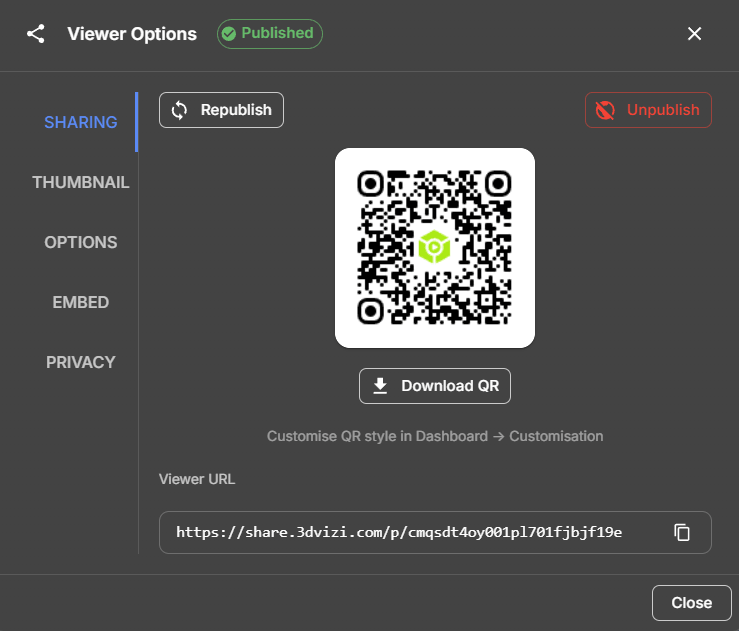
Publish, republish, unpublish, copy the public viewer URL, and download a QR code for the published presentation.
Thumbnail
Set the preview image shown in project lists and shared contexts. Capture the current editor view or use an existing snapshot thumbnail.
Options
Choose the viewer control mode and decide which viewer interface elements should appear for the audience.
Embed
Copy the iframe embed for a simple page, or the SDK embed when your website needs to control actions with JavaScript.
Privacy
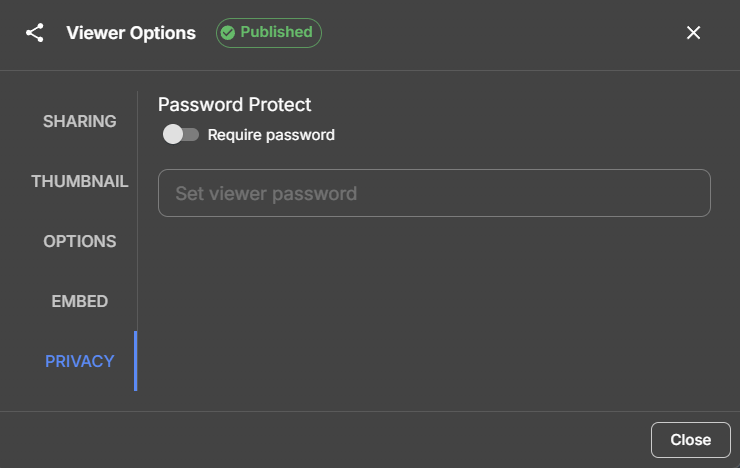
Add or remove viewer password protection when your plan allows it. This controls access to the published viewer.
Control modes
Choose how viewers move around the presentation.
The Controls setting changes the viewer's navigation style. Pick the mode that matches the job of the page: free exploration, simple rotating display, or a scroll-led presentation.
Orbit
The standard mode. Viewers can orbit around the model, pan, and zoom. Use this for most product viewers and configurators.
Turntable
The camera rotates around the model. Use this when you want a simple showroom-style experience with less manual navigation.
Scroll
The page scroll moves through snapshots in sequence. It requires at least two snapshots and disables conflicting viewer controls.
Publishing
Publishing creates the version your viewers see.
When you publish, 3DVizi saves the current project state and creates a public viewer version. Later edits in the editor do not automatically replace that public version. Use Republish when you want the shared link, QR code, and embeds to show the latest work.
Publish flow
How to publish, republish, and unpublish
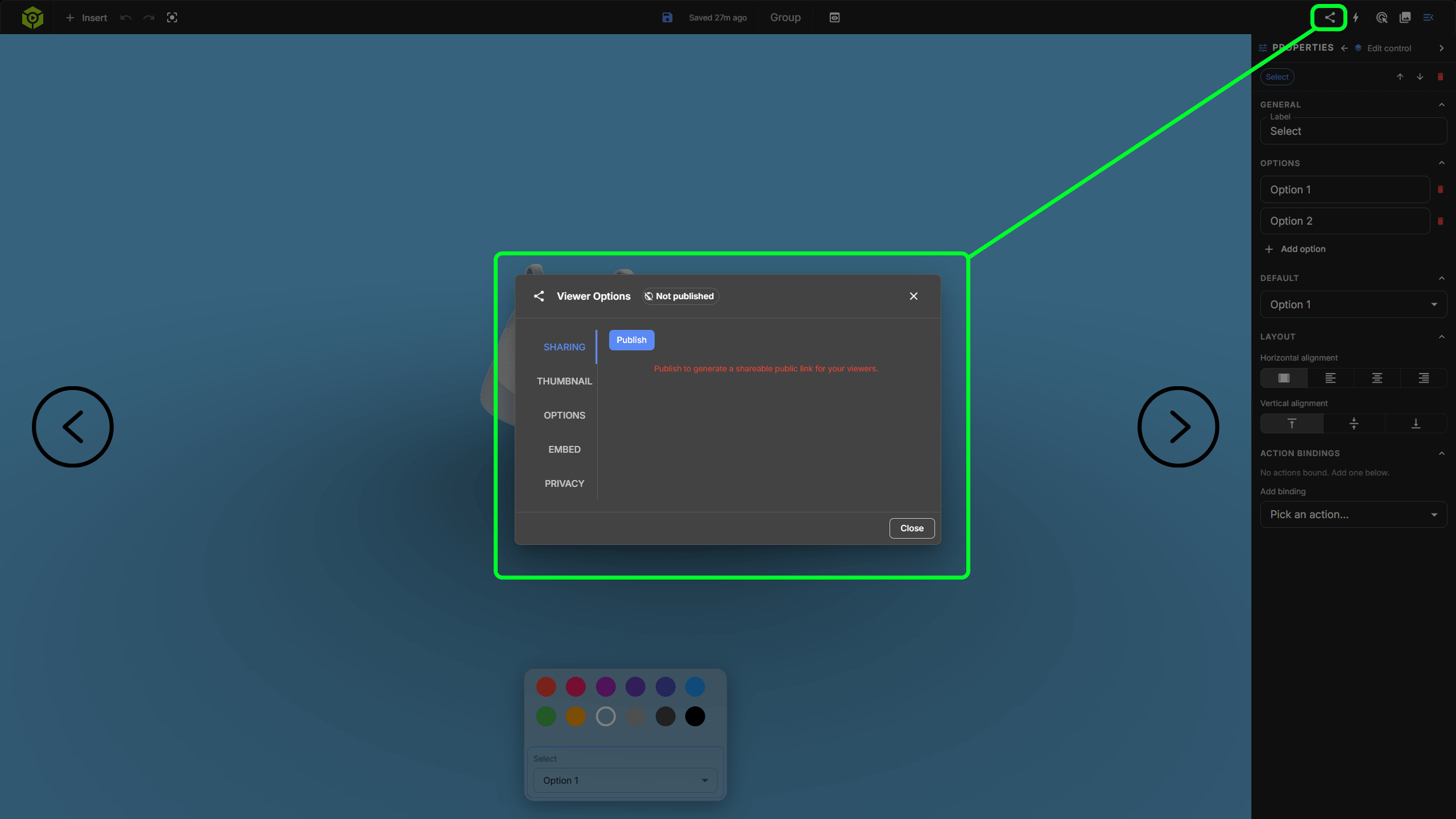
Open Viewer Options from the top toolbar.
Use the Sharing tab to publish the project. A published project gets a public viewer URL.
Copy the viewer URL, download the QR code, or go to the Embed tab for iframe and SDK snippets.
Keep editing in the editor as needed. Saved editor changes do not automatically replace the public viewer.
Click Republish when the public link, QR code, or embed should receive the latest saved project state.
Use Unpublish when the public viewer should stop being available.
Publishing creates the version that viewers see at the public URL.
Republishing updates that public version with your latest saved scene, overlays, actions, viewer options, and embed settings.
The public URL stays the same when you republish, so existing links and embeds keep working.
If a presentation is embedded elsewhere, that embed also uses the published version. Republish after changes before checking the external page.
Unpublishing makes the public viewer unavailable until you publish again.
Options tab
What the detailed options do
Show interaction hint
Shows a small hint that helps first-time viewers understand that the 3D scene is interactive.
Auto reset camera
Returns the camera to the intended view after interaction. This is disabled in scroll mode.
Force landscape on mobile
Encourages mobile viewers to rotate their device when the presentation needs a wider viewport.
Show view cube
Displays the view cube so viewers can quickly jump to common model angles. This is disabled in scroll mode.
Show snapshots
Shows the snapshot panel in the public viewer, letting viewers move between saved presentation views. This is disabled in scroll mode.
Viewport fit amount
Controls how strongly the camera adjusts when an embed is narrower than the editor view. 100% gives the full responsive adjustment.
Mobile breakpoint
Sets the width where overlays switch to their mobile behaviour, such as Dock or Hide.
Embed and privacy
Two common support questions
Why is the Embed tab disabled?
A project must be published before 3DVizi can provide embed code. Publish first, then return to Embed for the iframe or SDK snippet.
Does privacy affect the embed?
Yes. Password protection applies to the published viewer. If an embedded viewer requires a password, viewers must pass that gate before seeing the presentation.
Think of publishing as the handoff to your audience.
Viewer Options decide how the project behaves outside the editor. Once the presentation is live, republish after changes so support, sales, and customers are all looking at the same version.