
Alternative sets swap parts and assemblies.
Use alternative sets when a presentation needs interchangeable parts or assemblies without placing every variation in the same scene and hiding or showing them. Replacement models are loaded when needed, keeping the initial scene lighter and the setup easier to manage.
Overview
What an alternative set is for
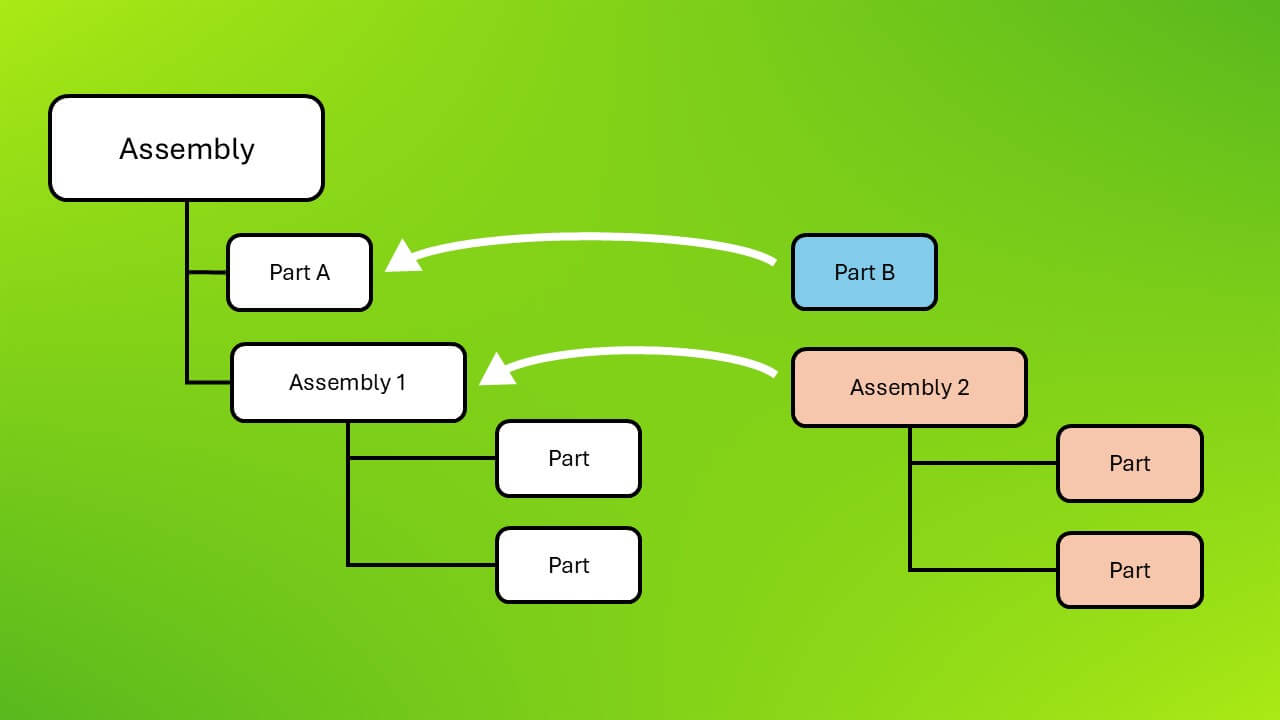
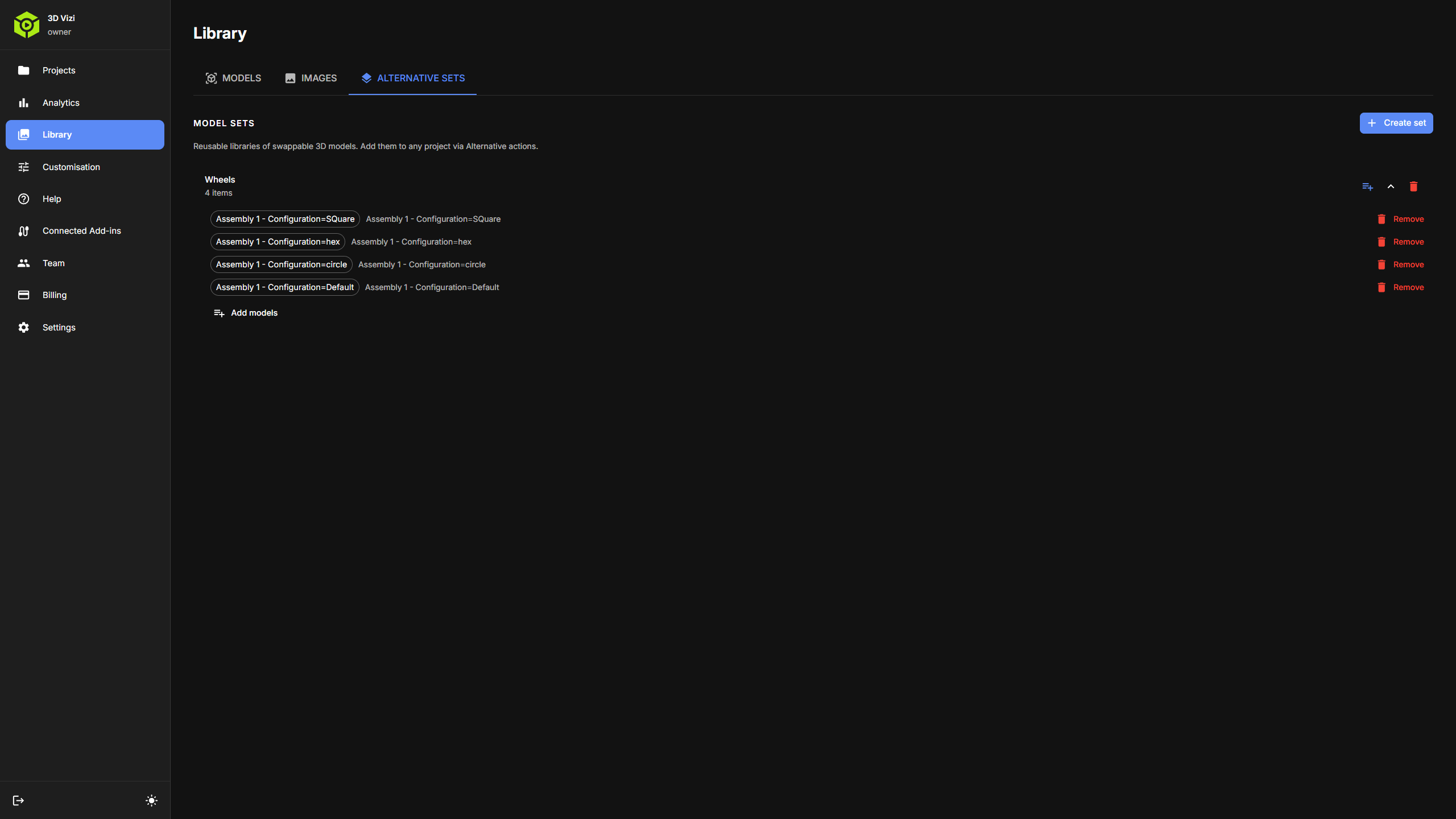
An alternative set is a group of replacement models for the same choice point in your presentation. A simple example is a hub that can be swapped for several hub designs. A larger example is a complete wheel assembly that can be replaced by another wheel assembly.
Without alternative sets, you may need to load every possible option into the scene and control visibility. That can be acceptable for a small number of options, but it becomes harder to manage and increases the amount of model data loaded up front.
The main idea
The viewer stays in the same presentation while 3DVizi replaces the targeted model with the selected alternative.
Why use them
They avoid loading every variation up front.
Keep alternatives as separate models
Store each swappable option as a library model instead of loading every variation into the same scene and hiding or showing them.
Replace the targeted part or assembly
Connect the set to an Alternative action, then target the part, assembly, material group, or Selection Set that should be replaced.
Map materials when choices must persist
Enable Map Materials when editor-applied materials or viewer-selected colours must carry across to the swapped-in component.
How it works
Create the set, then connect it to an action
Create an Alternative Set from the Dashboard by uploading models or selecting models already in your library.
If you use a CAD add-in and the part or assembly has configurations, create the set from CAD and export the selected configurations in one operation.
In the Actions Manager, create an Alternative action, add a slot, and choose the Alternative Set.
Set the action target. This can be specific parts, items using a material, or a Selection Set.
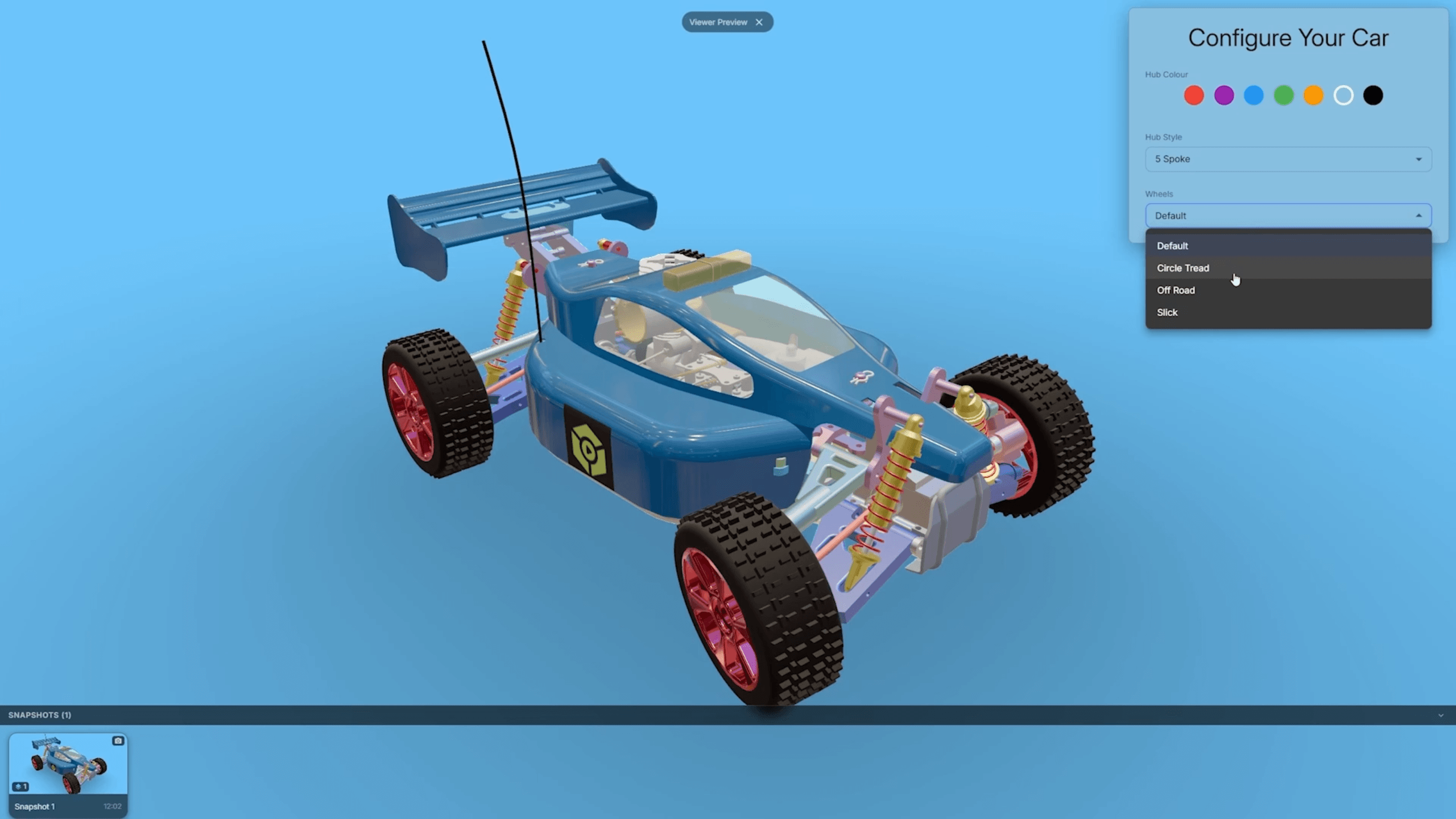
Bind the action to an overlay control and map each control option to the matching model in the set.
Material mapping
Keep the viewer's colours when they switch.
Map Materials is the setting that lets editor-applied materials or viewer-selected colours and finishes propagate to the swapped-in model. If it is not enabled, the incoming alternative keeps its own materials.
For a simple one-part replacement, the current material can be shared directly. For assemblies, 3DVizi uses matching information to decide which incoming parts should receive the existing materials.
Matching rules
How material mapping decides what matches
These rules are only used when Map Materials is enabled. They control where existing colours and materials are applied on the incoming alternative.
1. Direct 1-to-1 swaps
When a single target is replaced by a single alternative, Map Materials can reuse the current material on the incoming component.
2. 3DVizi Match Name metadata
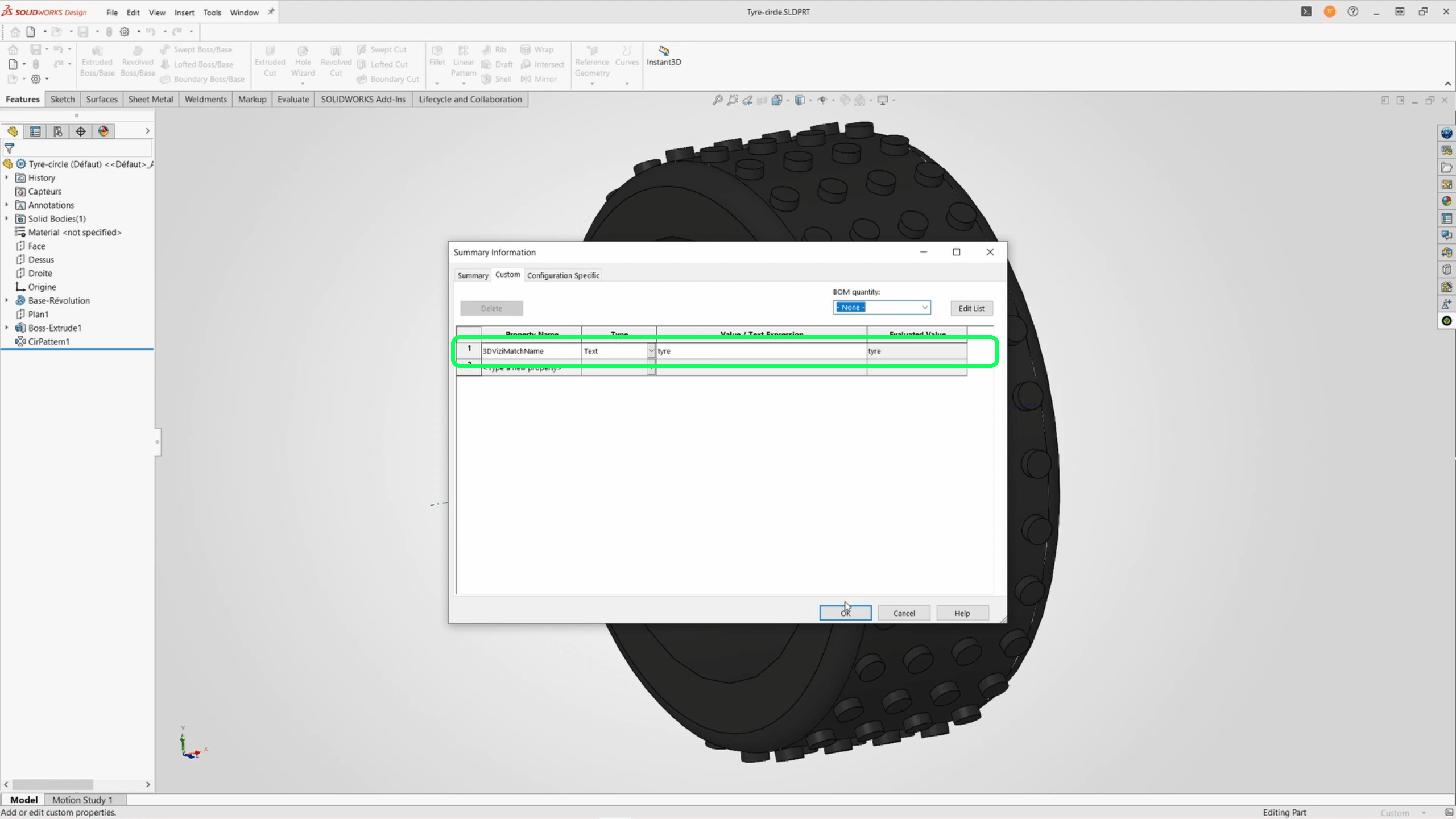
For assemblies, or for equivalent parts with different names, add a CAD custom or meta property called 3DVizi Match Name and give matching parts the same value.
3. CAD add-in identity
When models are exported through a 3DVizi CAD add-in, generated identity data can help match parts where explicit metadata is not present. This only applies to models created through those add-ins.
4. Part or object names
If no stronger signal is available, 3DVizi can fall back to part, mesh, or object names. This is useful for simple models, but consistent naming is less reliable than metadata.
A simple example
A replacement hub can keep the selected finish.
The material is changed first
A material may be applied in the editor, or a viewer may choose a colour, finish, or material from an overlay control.
Then the alternative is selected
When the hub or wheel assembly is swapped, Map Materials tells 3DVizi to carry the existing material to the matching part in the replacement model.
Assemblies need reliable matching
For assemblies with several parts, use 3DVizi Match Name metadata or consistent part names so each material is applied to the correct replacement part.
Best practice
Set up alternatives so material mapping is predictable
Use one alternative set for one replacement decision, such as wheels, handles, panel styles, covers, or configured assemblies.
Use the Dashboard when you want to upload models manually or choose models that are already in your library.
Use a CAD add-in when a part or assembly has multiple configurations and you want to export the selected configurations into one Alternative Set in a single operation.
Enable Map Materials whenever editor-applied or viewer-selected materials must persist after a swap.
Use 3DVizi Match Name metadata when equivalent parts have different CAD names.
Keep equivalent parts named consistently where possible, especially if you are relying on name matching as a fallback.
For Onshape exports that depend on custom match metadata, enable Include Properties so those properties are transferred.
Use Alternative Sets for real model replacements.
Keep each set focused, enable Map Materials when material changes must persist, and use metadata or consistent names when assemblies need their materials mapped part by part.