Actions are what controls actually do.
Actions are reusable scene commands. Overlay controls and API calls send values to actions, and actions turn those values into visible changes in the 3D presentation.
Overview
What is an action?
An action is a named instruction that can be triggered by the viewer. It might show a part, change a colour, swap a model option, jump to a snapshot, or play an animation.
Actions are separate from controls. A control is the visible thing the viewer clicks or changes. The action is the reusable logic behind it. This matters because the same action can be triggered by an overlay control, a 3D scene button, or your own website through the API.
The main idea
Controls collect values. Actions apply those values to the scene.
Action types
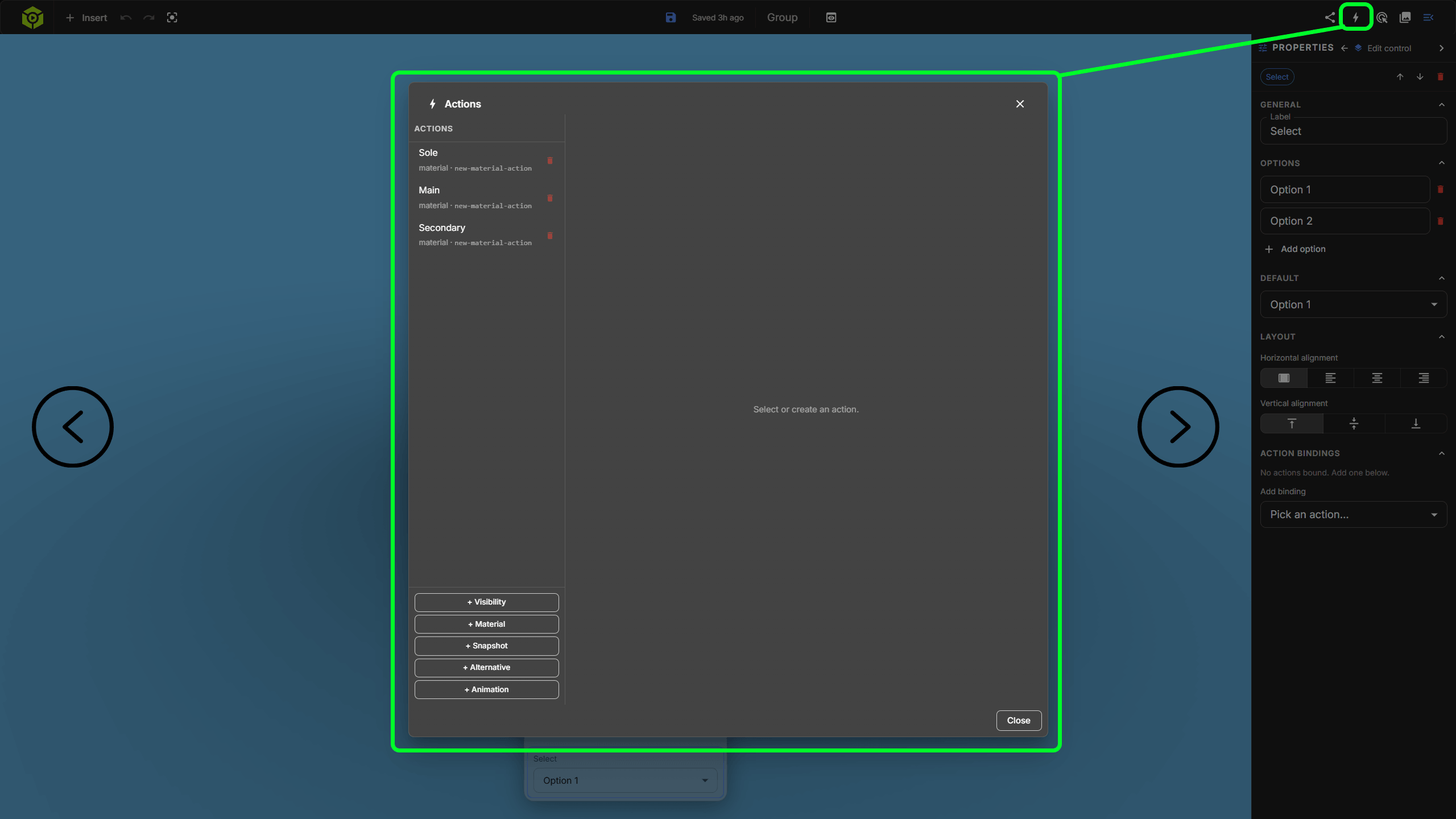
The five action types
Visibility
Shows or hides the target parts. It expects a true or false value, which usually comes from a switch, checkbox, button value map, or API call.
Material
Changes one material property on the target parts. Common properties include color, roughness, metalness, opacity, and emissive.
Alternative
Swaps target parts for items from an alternative set. It expects an item label or numeric index. The value default restores the original parts.
Snapshot
Activates a saved snapshot. The configured snapshot is used when the action fires, so the incoming control value is usually ignored.
Animation
Starts a selected animation clip on a model that contains animation data. The action stores the target model, clip name, and playback mode.
Create one
A typical action workflow
Open the Actions dialog from the top toolbar.
Choose the action type: Visibility, Material, Snapshot, Alternative, or Animation.
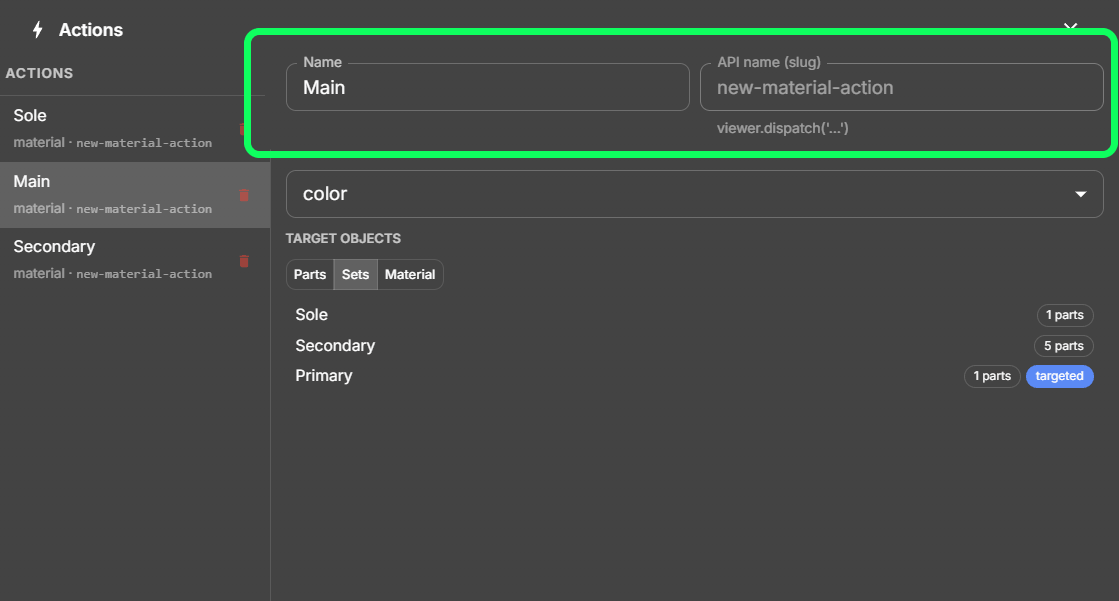
Give the action a clear label. 3DVizi creates the API name slug from that label.
Configure what the action controls, such as target parts, material property, snapshot, alternative set, or animation clip.
Add or edit overlay controls that should trigger the action.
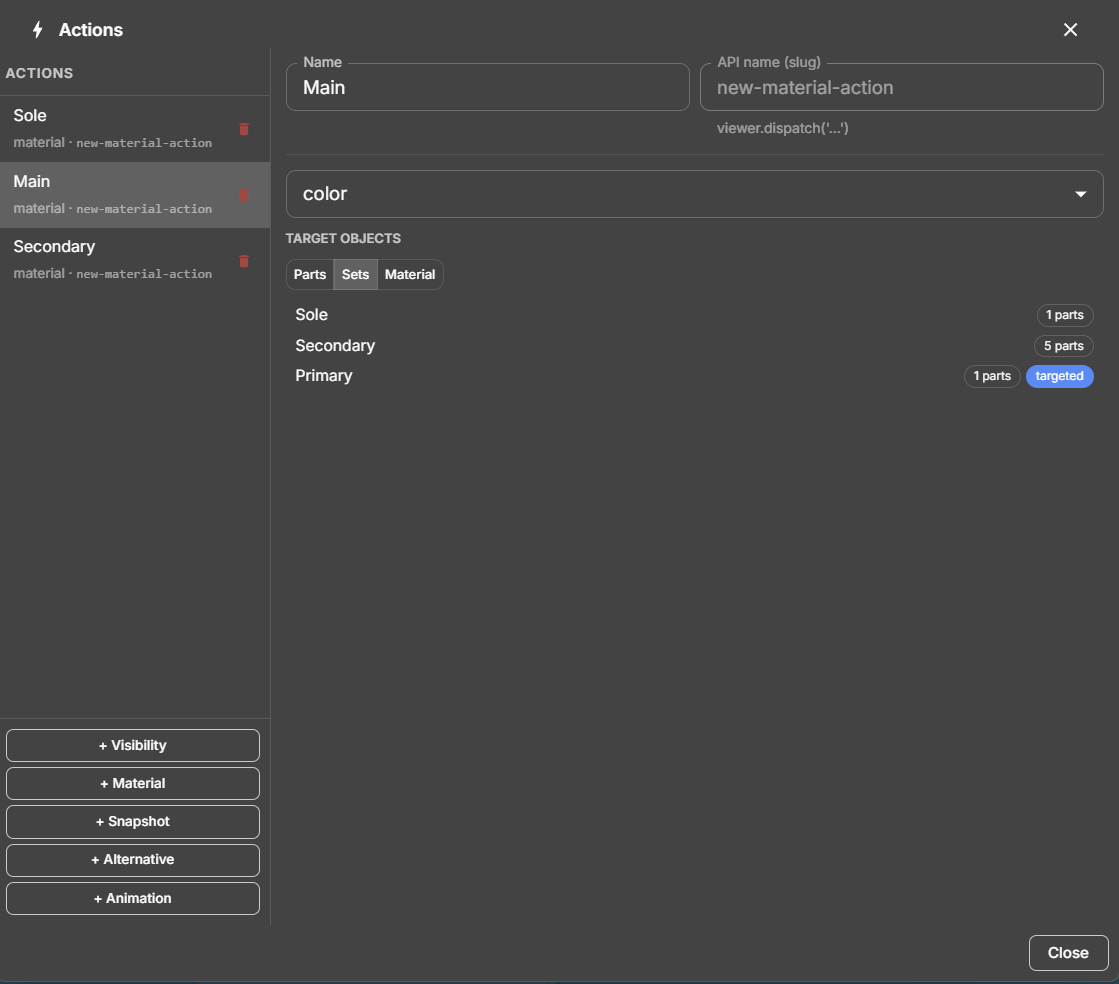
Bind each control to the action, then use a value map if the control value needs translating.
Save the project and republish when the public viewer should receive the action changes.
Value flow
A control value becomes an action value.
When a viewer changes a control, 3DVizi takes the raw value, applies any value map, then dispatches the result to the chosen action. API calls do the same thing by dispatching a value to the action's API name.
Targets
Most actions need to know what they affect.
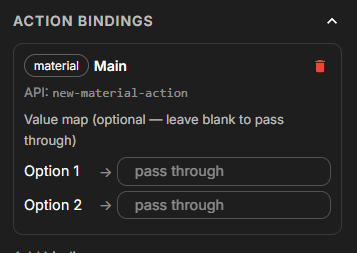
Visibility, Material, and Alternative actions use targets. Targets can be direct parts, selection sets, or material groups. Choosing the right target type makes projects easier to maintain.
Parts
Pick specific scene objects directly. This is simple and clear when the action only affects one part or a small known group.
Selection sets
Target a reusable named set of parts. This is useful when several actions should affect the same group, or when the group may change later.
Material
Target all visible parts that share a material entry. This is helpful when a finish or material group is more important than object names.
Controls
How to link actions to overlay controls
Bind a control to an action
Select the overlay control, open its bindings, and choose the action it should trigger. A control can drive more than one action when needed.
Use value maps for translation
A value map lets the visible control value differ from the action value. This is useful for labels, inverted booleans, or sending a fixed value from a button.
A switch bound to a Visibility action can send true when on and false when off.
A checkbox can be value-mapped so checked hides something instead of showing it.
A select bound to an Alternative action can send item labels such as Standard, Sport, or Premium.
A colour picker bound to a Material action can send the selected hex colour.
A button can trigger a Snapshot action, open a URL, or send a fixed value to an action.
API names
Action names are also API handles.
Each action has a friendly label and an API name slug. The slug is what custom websites use with the viewer API. For example, a label such as Show Wheels may create an API name such as show-wheels.
The important support detail is that overlay controls and API calls trigger the same action. If an action works from an overlay but not from a custom page, check that the custom page is dispatching the exact API name and a value the action type expects.
Useful check
Use the Embed/API guide's getActions example to list the actions available in a published viewer.
Good habits
Make actions easy to support later.
Name actions for the job they perform, such as show-wheels, chair-finish, or open-position.
Use selection sets when the same target group is used by more than one action.
Keep alternative set item labels consistent when one control drives multiple alternative slots.
Test actions from the overlay controls before publishing.
If a control stops working, check that the action still exists and that its targets still resolve.
Republish after changing actions, bindings, or alternative sets used by the public viewer.
Configure, then test
After creating or editing actions, test the real controls in preview. For public links and embeds, republish before testing the external page.
API calls use the same actions
A custom page can call the same action names your overlay controls use. That keeps no-code controls and coded controls consistent.
Boolean values are flexible
Visibility actions treat true as visible and false as hidden. Strings such as false, 0, no, and off are also treated as false.
Actions are the contract between UI and scene behaviour.
Keep the action focused, give it a clear name, choose stable targets, and bind controls deliberately. Once that contract is clear, overlays and custom API controls become much easier to reason about.